Installation
This section contains the information you need to install and configure U-Rite's Excel Add-in. New features and functionalities will be added to subsequent versions automatically.
System Requirements
-
✅ Operating System
A PC with Windows 7, Windows 8, Windows 8.1, Windows 10 or Windows 11. -
✅ Windows
Install any outstanding updates to Windows. Open Control Panel, then select Windows Update. Alternatively, press the Windows key, then search for "Windows Update". If optional or important updates are available, click Install Updates to install them. Restart your computer if prompted. -
✅ Microsoft Office
U-Rite's Excel Add-in works on Office 2013, 2016, and Office 365 when installed locally on a PC. U-Rite does not support Office 365 in a web browser, Office Online, and Office for Mac (including Office 2016 for Mac).
If you have trouble installing the software or have any questions or concerns, please reach out to our support team at
Install from Browser
To install The U-Rite Excel Add-in, follow the below instructions:
-
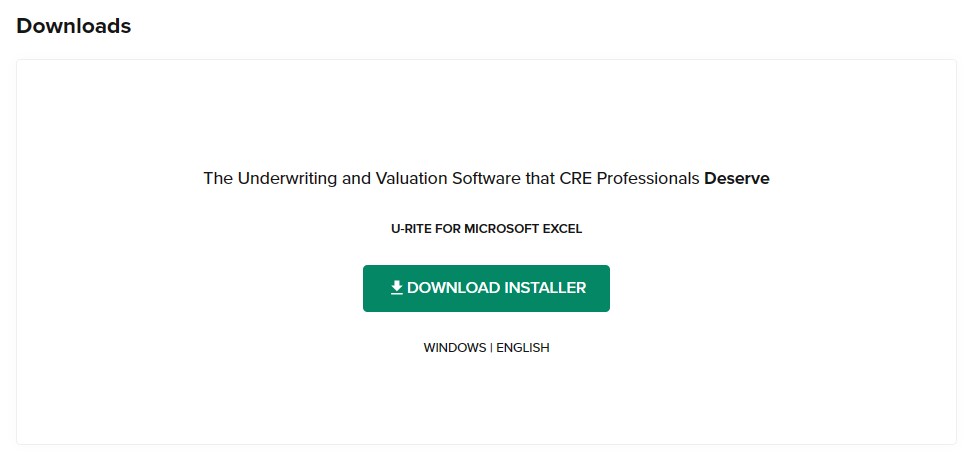
Login to Dashboard and navigate to Downloads from the sidebar.
-
Click Download Installer to download U-Rite Excel Add-in Installer.
-
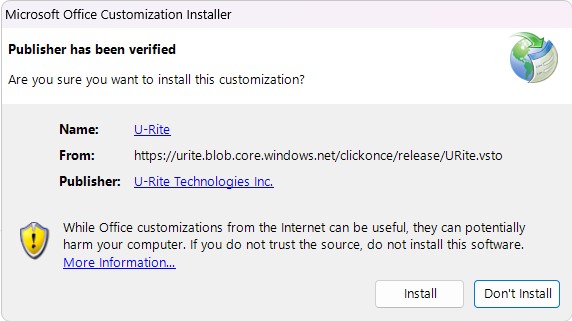
Run the downloaded file and click Install.
-
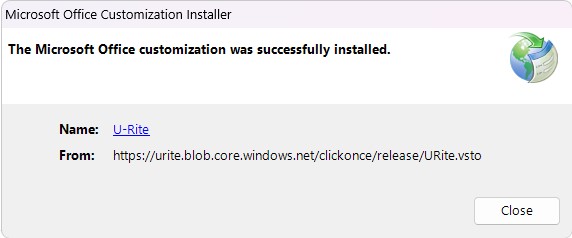
Once the installation is complete, click Close.
Accessing the Add-in
-
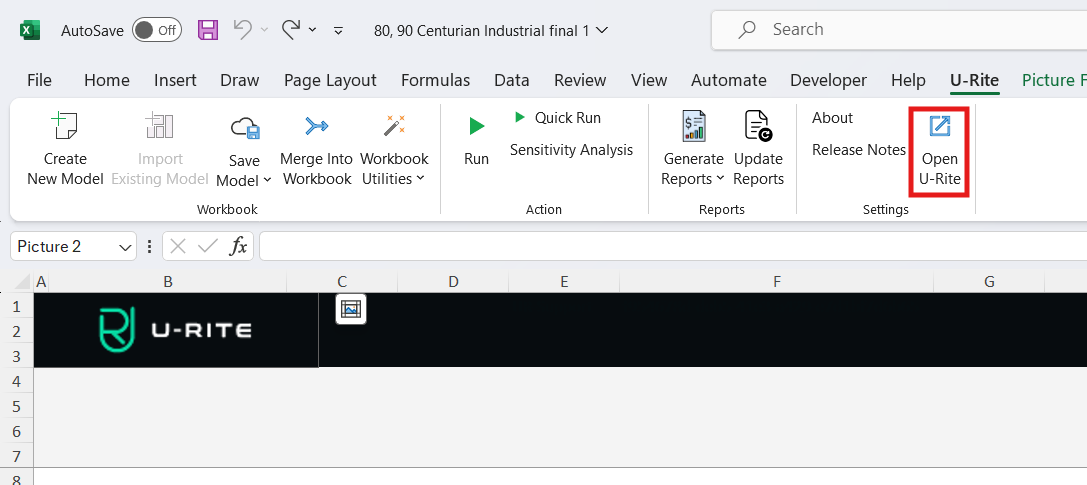
To start using the U-Rite Add-in, open a new workbook in Excel. A new tab will be present in the Excel Ribbon called U-Rite. Click this tab followed by the button Show U-Rite to open the U-Rite. The U-Rite browser will appear, and you will be prompted to log in with the same credentials used to access your Dashboard.
-
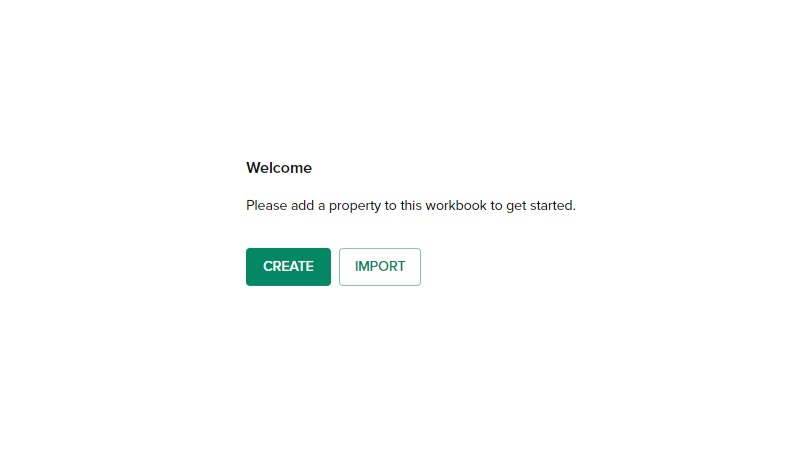
Once logged in, the add-in functionalities are unlocked and now models can be created. You will be asked to create a new property and fill out the following property-specific data property name, area, and location. For U-Rite usage, please refer to the U-Rite Documentation.
-
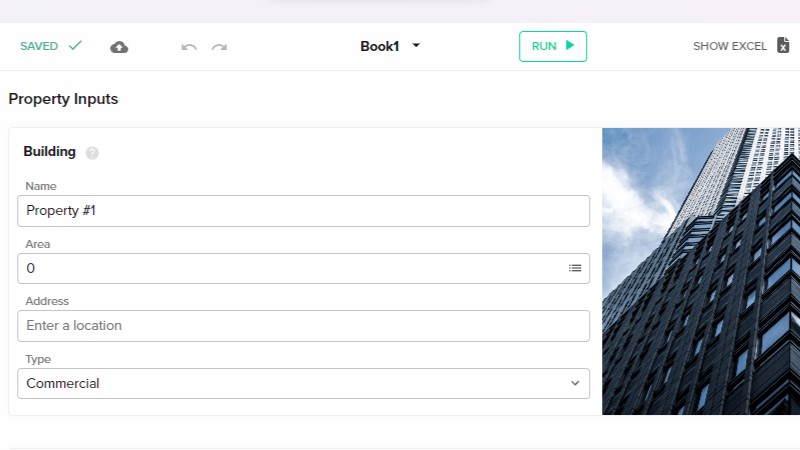
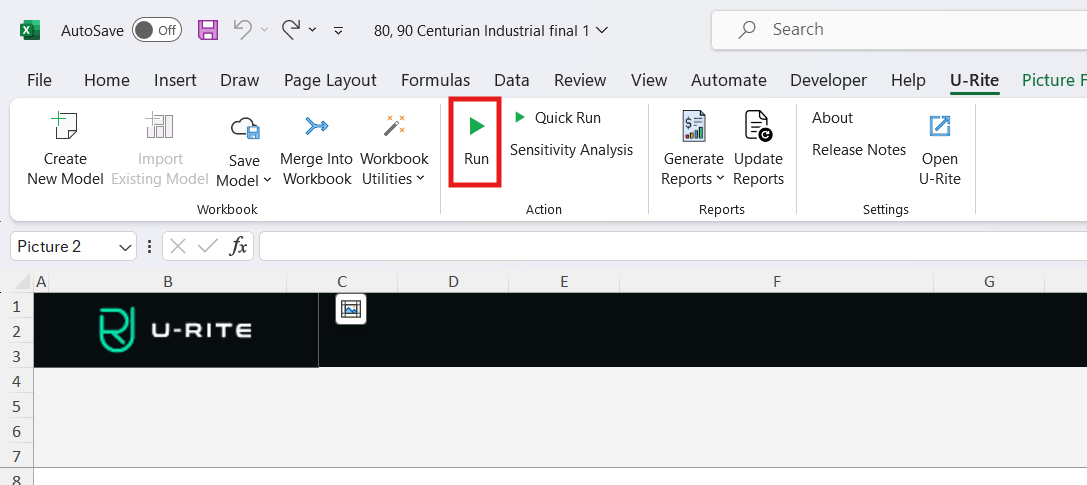
Once a model has been set up, it can be calculated using the run button in either the U-Rite app Actionbar or in the Excel Ribbon.
-
All changes made within the U-Rite are saved to your Excel workbook. Always make sure to save before closing your workbook to ensure the data stays consistent. Additionally, you may check the Saved status at the top-left of the U-Rite. When the data is saved, the icon will state SAVED otherwise it will say SAVE and will allow you to click it to manual save.