Navigator
The Sidebar displays information and actions relating to the current property.
Property List
All properties within the portfolio are listed here. Users can toggle between each property through this drop down and the U-Rite will update with the data of the selected property. Users can remove a property from the portfolio by clicking X.
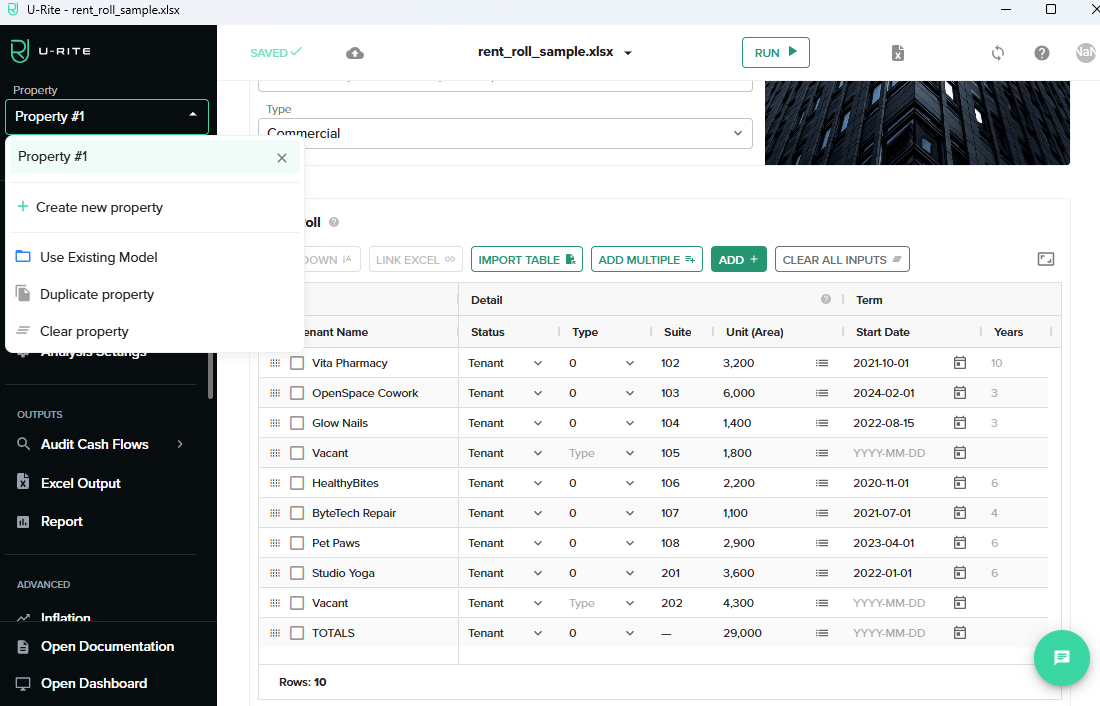
Create new property
To start your underwriting with a new property, click Create new property. Enter a name and the area of the new property.
| Name | Options | Description |
|---|---|---|
| Name | Enter property name. | |
| Area | Enter area. | |
| Type | Commercial Residential | Select property type. |
Import Property
Import from U-Rite Dashboard
This method allows you to import a property directly from the U-Rite Dashboard, leveraging an existing portfolio with a selected scenario. It's a convenient way to seamlessly integrate properties into your workspace.
Duplicate Property
Duplicate property can be used for different scenarios. Instead of re-entering the same data into a new model, user can easily duplicate a property and make modifications from the duplicated property.
Important to note: Any global profiles will be shared with the original property and changes made to the global profile will be reflected across all properties. Any non-global profiles will be duplicated and property specific.
Clear Property
This button resets the property to its default empty state, except the property name.
Inputs
The Inputs section is where the user populates the inputs which will drive the underwriting of the model.
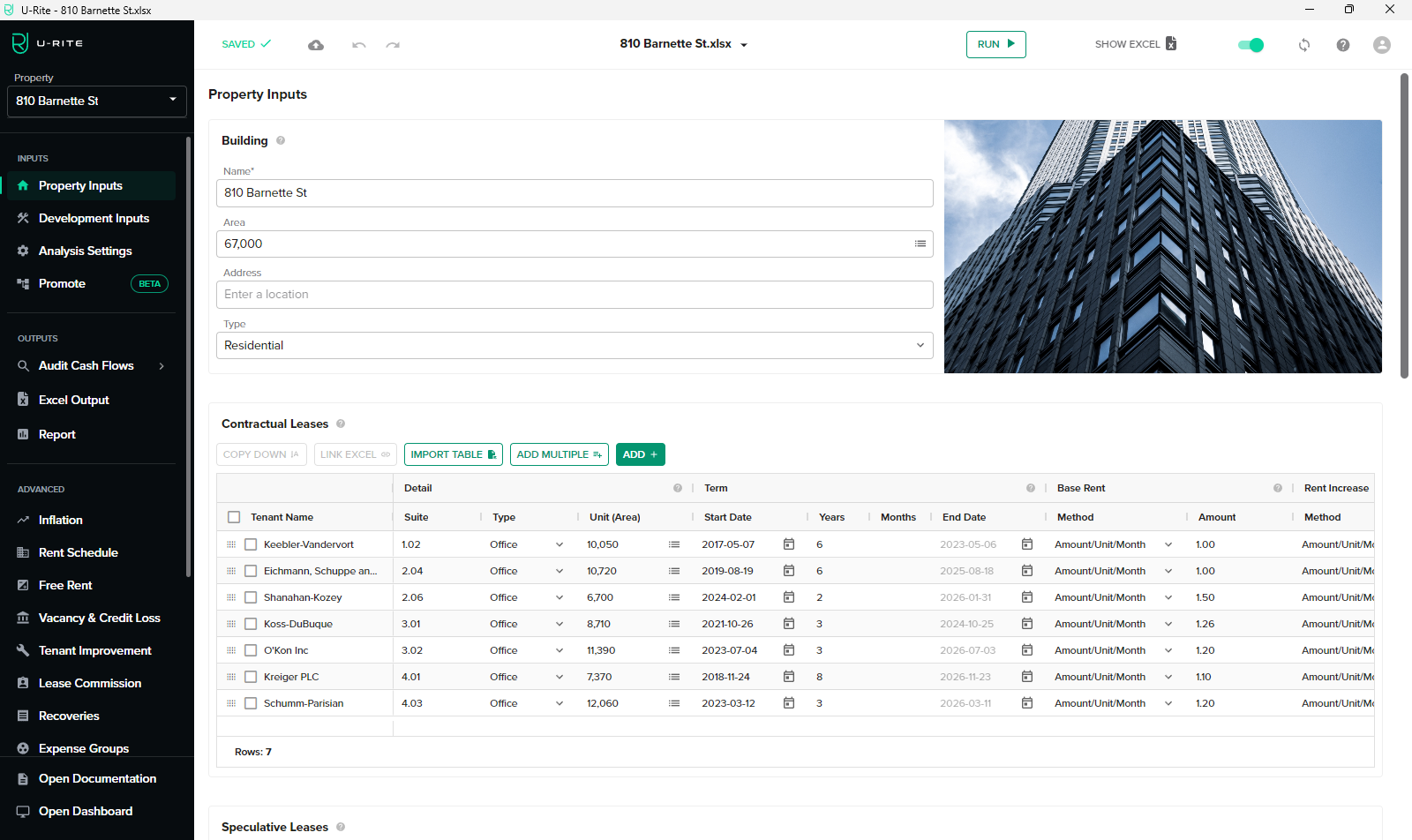
Property Inputs
Click here to learn more Property Inputs.
Development Inputs
Click here to learn more Development Inputs.
Analysis Settings
Click here to learn more Analysis Settings.
Outputs
Outputs are the result of Inputs data. U-Rite Outputs can be found in the U-Rite app, and can be outputted as a Excel worksheet.
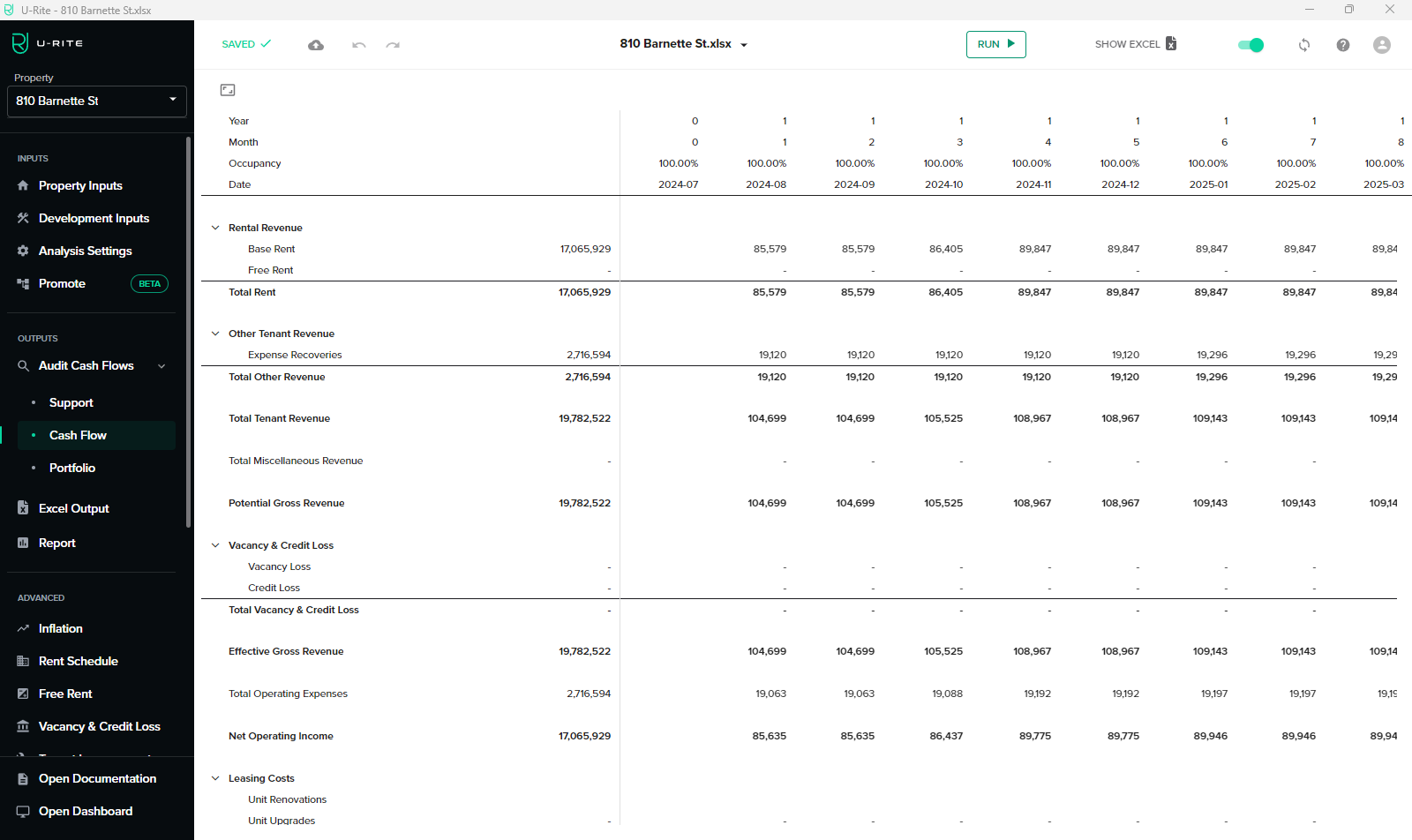
Audit Cash Flow
Click here to learn more about Audit Cash Flow.
Excel Output
Click here to learn more about Excel Output.
Report
Click here to learn more about Report.
Advanced
These are the advanced tabs where user can create more detailed profiles.
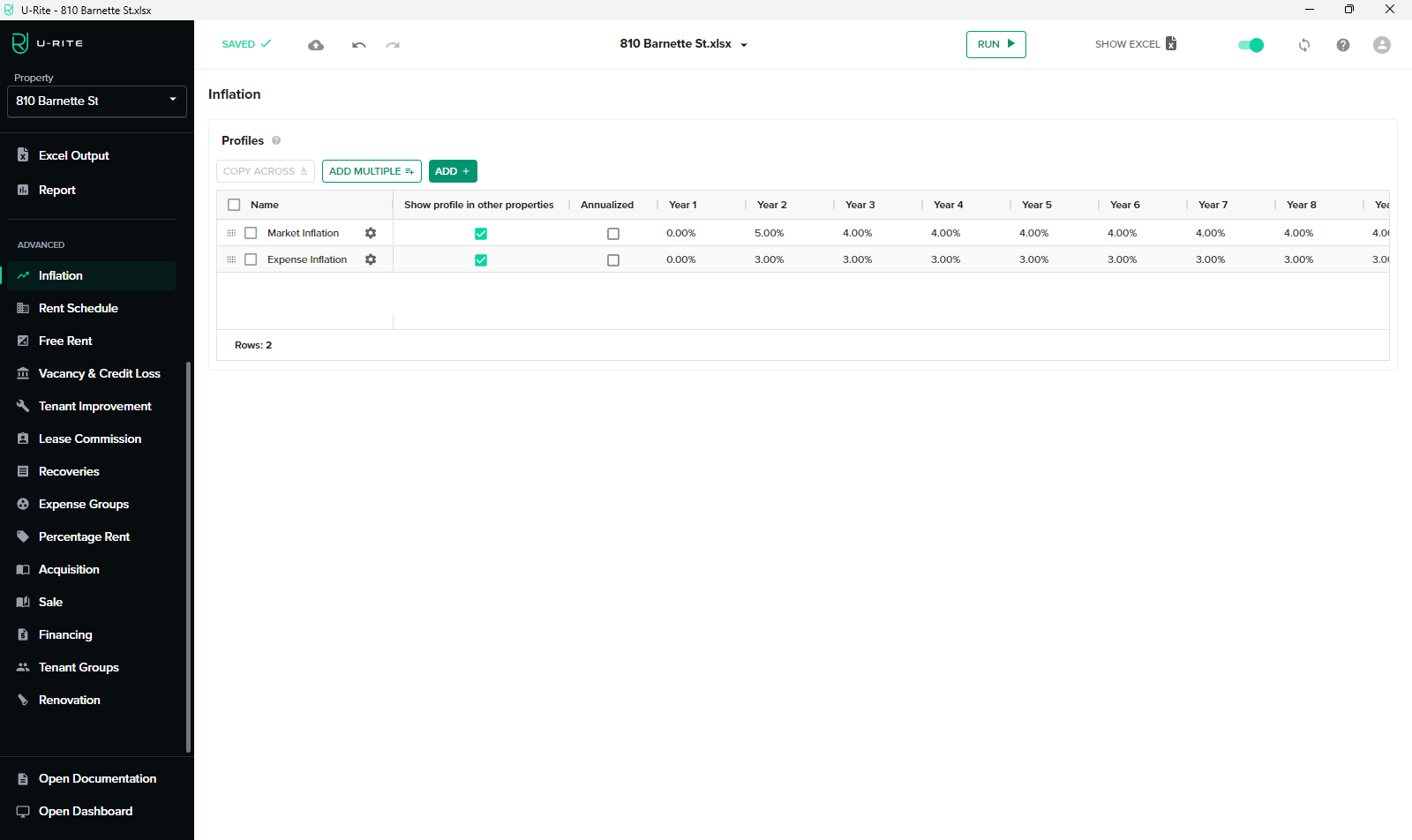
Click here to learn more about Profiles.